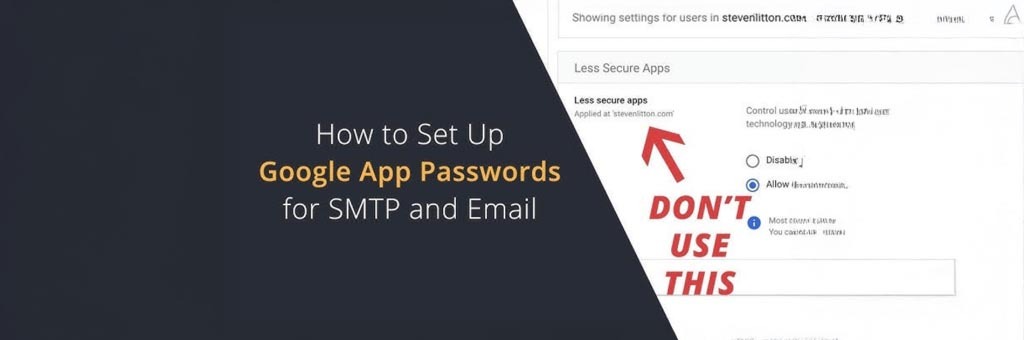
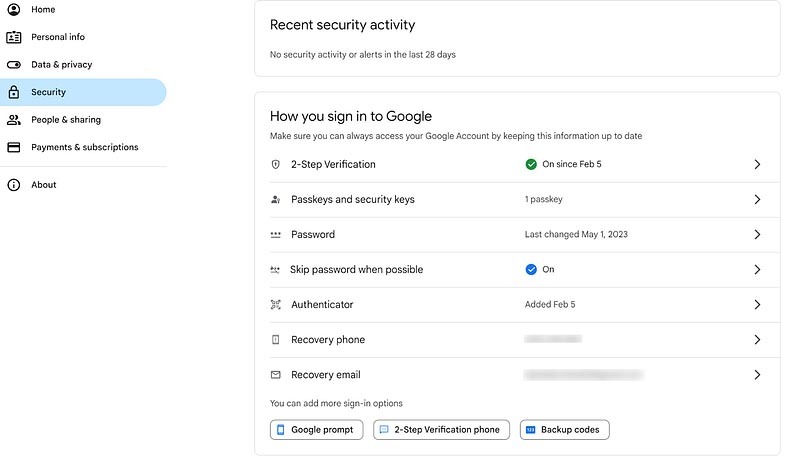
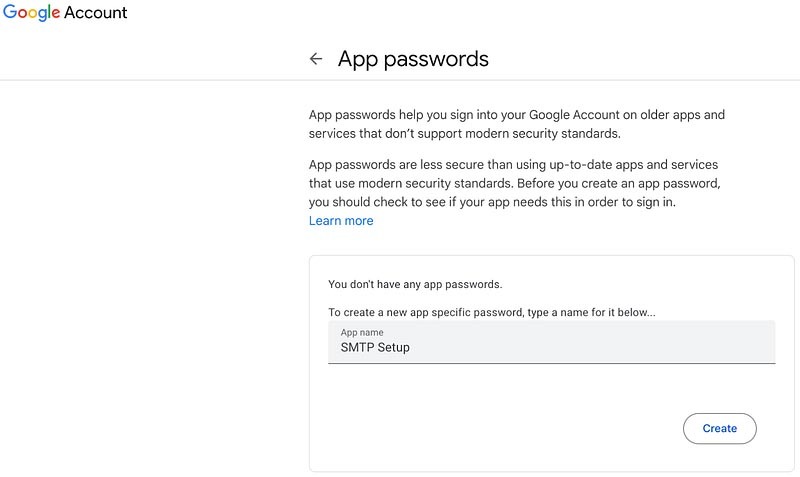
Setting up SMTP for sending emails through your application? If you’re using Gmail, you’ll need to enable App Passwords (especially if you have 2-Step Verification enabled). Follow these simple steps:
Note: You must have 2-Step Verification enabled to access App Passwords.
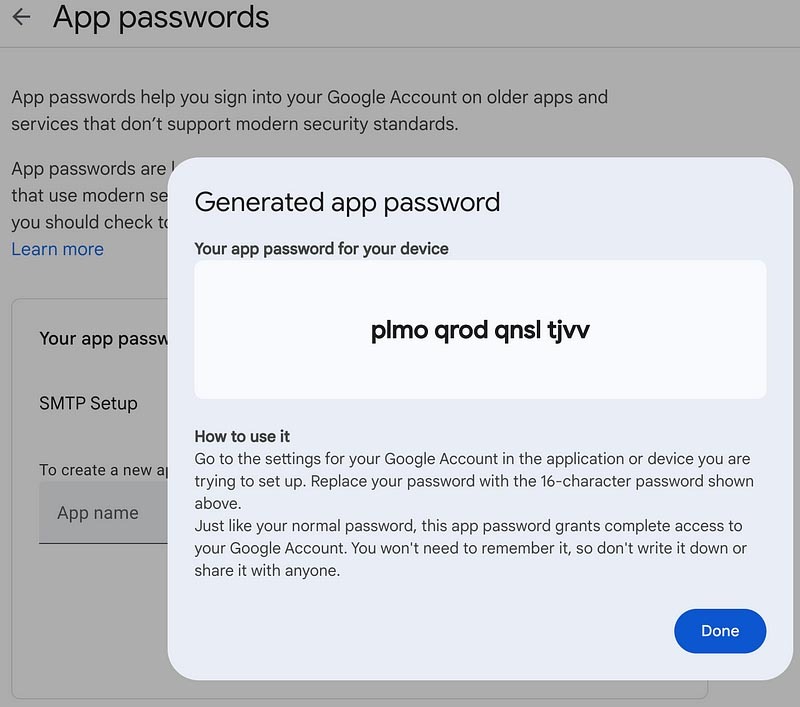
This is your new SMTP password. Use it with your full Gmail address when configuring email in your app.
Make your site the obvious answer in Google and AI tools like Perplexity and ChatGPT.
Proximate Solutions will audit your site and deliver a simple plan you can act on immediately.
What you get (no cost, no commitment):Claim Your Custom AI Visibility & Growth Blueprint
Yes, I Want My Free Blueprint →

You can always revisit the App Passwords page to:
You’re Done!
Your SMTP is now securely set up using Google’s recommended method. This helps keep your email communication reliable and protected.
While Google still supports app passwords for legacy or “less secure apps,” they are highly discouraged and should only be used as a last resort. These 16-digit passcodes grant a specific app or device direct permission to access your Google Account, and they can only be generated if you have 2-Step Verification (2FA) enabled. Because they do not protect against all modern security risks, app passwords are entirely unnecessary for most up-to-date applications and should only be created when absolutely required for an isolated device or program.
1- Does Google still allow app passwords for SMTP?
Yes, Google still supports 16-digit app passwords, but they are treated as a last resort for legacy or “less secure apps” that do not support modern login standards.
2- What is the main requirement to generate a Google app password?
You must have 2-Step Verification (2FA) actively enabled on your Google Account. Without 2FA turned on, the option to generate app passwords will not appear.
3- Are Google app passwords safe to use for SMTP?
They are generally discouraged because they don’t protect against all modern security risks. They bypass 2FA for that specific connection, so they should only be used when absolutely necessary.
4- Can I use my regular Gmail password for SMTP setup?
No. Google blocks standard account passwords on external apps or legacy printers to protect your account. You must use an app password or modern OAuth authentication.
5- How many digits is a Google app password?
It is a unique, randomly generated 16-digit passcode. You only need to enter it once when configuring your SMTP client or plugin, and you do not need to memorize it.
6- Should I generate one app password for multiple devices?
No. For security tracking, you should generate a unique, dedicated app password for each specific app, plugin, or device that requires SMTP access.
7- What is the modern alternative to Google app passwords?
The recommended approach is using OAuth 2.0 authentication. Most modern applications and WordPress SMTP plugins now support OAuth, which is significantly more secure than app passwords.
Setting up SMTP for sending emails through your application? If you’re using Gmail, you’ll need to enable App Passwords (especially if you have 2-Step Verification enabled). Follow these simple steps:
Note: You must have 2-Step Verification enabled to access App Passwords.
This is your new SMTP password. Use it with your full Gmail address when configuring email in your app.
Make your site the obvious answer in Google and AI tools like Perplexity and ChatGPT.
Proximate Solutions will audit your site and deliver a simple plan you can act on immediately.
What you get (no cost, no commitment):Claim Your Custom AI Visibility & Growth Blueprint
Yes, I Want My Free Blueprint →
You can always revisit the App Passwords page to:
You’re Done!
Your SMTP is now securely set up using Google’s recommended method. This helps keep your email communication reliable and protected.
While Google still supports app passwords for legacy or “less secure apps,” they are highly discouraged and should only be used as a last resort. These 16-digit passcodes grant a specific app or device direct permission to access your Google Account, and they can only be generated if you have 2-Step Verification (2FA) enabled. Because they do not protect against all modern security risks, app passwords are entirely unnecessary for most up-to-date applications and should only be created when absolutely required for an isolated device or program.
1- Does Google still allow app passwords for SMTP?
Yes, Google still supports 16-digit app passwords, but they are treated as a last resort for legacy or “less secure apps” that do not support modern login standards.
2- What is the main requirement to generate a Google app password?
You must have 2-Step Verification (2FA) actively enabled on your Google Account. Without 2FA turned on, the option to generate app passwords will not appear.
3- Are Google app passwords safe to use for SMTP?
They are generally discouraged because they don’t protect against all modern security risks. They bypass 2FA for that specific connection, so they should only be used when absolutely necessary.
4- Can I use my regular Gmail password for SMTP setup?
No. Google blocks standard account passwords on external apps or legacy printers to protect your account. You must use an app password or modern OAuth authentication.
5- How many digits is a Google app password?
It is a unique, randomly generated 16-digit passcode. You only need to enter it once when configuring your SMTP client or plugin, and you do not need to memorize it.
6- Should I generate one app password for multiple devices?
No. For security tracking, you should generate a unique, dedicated app password for each specific app, plugin, or device that requires SMTP access.
7- What is the modern alternative to Google app passwords?
The recommended approach is using OAuth 2.0 authentication. Most modern applications and WordPress SMTP plugins now support OAuth, which is significantly more secure than app passwords.